Connecting MySQL to Windows 11 Command Prompt (CMD) / PowerShell
 Asyraf Wahi Anuar
open mysql in CLI windows 11
Key takeaways
- Add the Laragon MySQL bin directory to the System PATH so the mysql command works from any directory.
- Connect with mysql -u root, since Laragon sets the MySQL root user with no password by default.
- All SQL statements in the MySQL console must end with a semicolon before pressing Enter.
- Use SHOW DATABASES, USE, SHOW TABLES, DESCRIBE and SELECT * to inspect databases, tables and data.
- Exit the MySQL console with EXIT; or QUIT; to return to the Windows command prompt.
Tech stack
- MySQL
Before you start
- MySQL
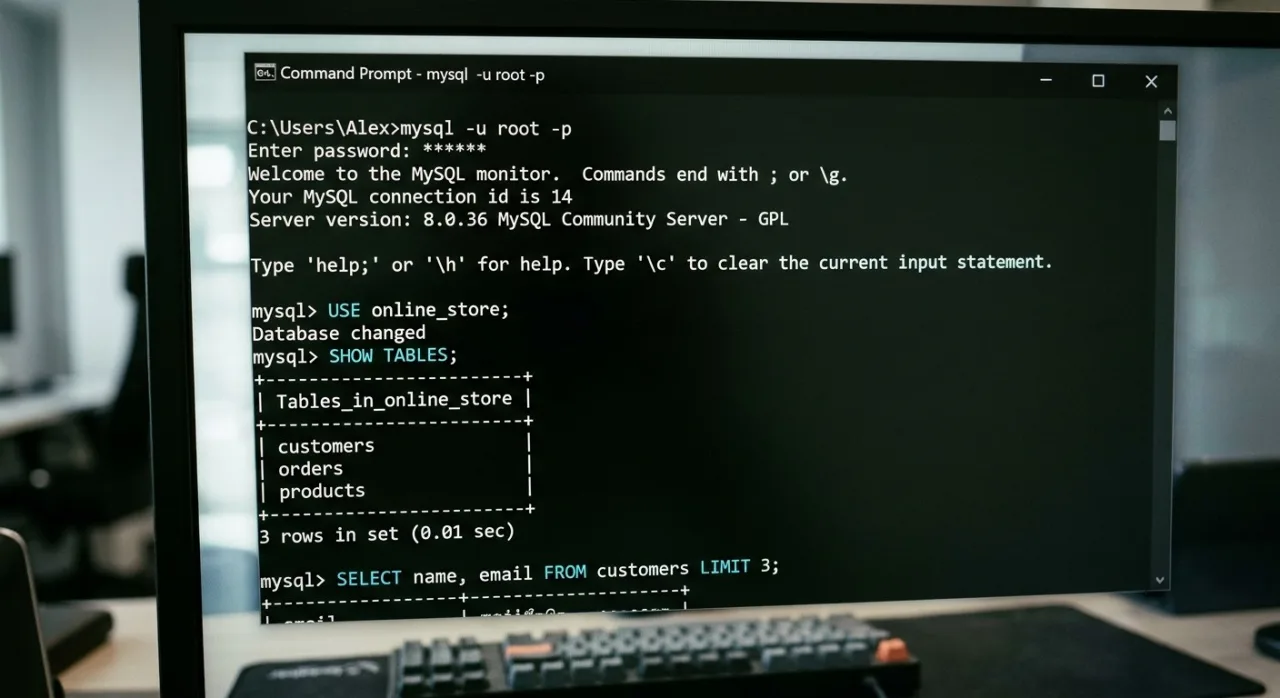
This guide provides a complete, step-by-step walkthrough for connecting Laragon’s bundled MySQL instance to the Windows 11 Command Prompt (CMD) or PowerShell. It also covers a quick-reference list of fundamental MySQL CLI commands for database administration.
Step 1: Add MySQL to System Environment Variables (PATH)
Adding MySQL to your System PATH allows you to run the mysql command from any directory in CMD or PowerShell without navigating to the installation folder every time.
Press the Windows Key, search for Environment Variables, and select Edit the system environment variables.
Click the Environment Variables... button at the bottom right.
In the System variables section (bottom pane), select the
Pathvariable and click Edit....Click New on the right side and paste the path to your Laragon MySQL
bindirectory:Plain text C:\laragon\bin\mysql\mysql-8.x.x\binNote: Check your local folder (C:\laragon\bin\mysql\) to get the exact version folder name (e.g., mysql-8.0.30-winx64 or similar).
Click OK on all windows to save the changes.
Step 2: Connect to MySQL via CMD / PowerShell
By default, Laragon configures the MySQL root user with no password (blank).
Open Command Prompt (CMD) or PowerShell (Press Win + R, type cmd, and hit Enter).
Run the following command:
mysql -u rootUpon successful connection, your prompt will change to mysql>:
Welcome to the MySQL monitor.  Commands end with ; or \g.
Your MySQL connection id is 8
Server version: 8.0.30

mysql>
Step 3: Essential MySQL CLI Commands
Important: All SQL statements in the MySQL interactive console must end with a semicolon (;) before pressing Enter.
View List of Databases
To see all available databases:
SHOW DATABASES;Select / Switch Database
To work with a specific database, select it using:
USE your_database_name;View List of Tables
Once inside a database, view all its tables with:
SHOW TABLES;View Table Structure & Attributes (Columns, Data Types, Keys)
To inspect the columns, data types, nullability, primary keys, and extra attributes of a table:
DESCRIBE your_table_name;(Alternatively, you can run SHOW COLUMNS FROM your_table_name;)
View Table Data (Records)
To display the actual data rows inside a table:
SELECT * FROM your_table_name;Exit MySQL Console
To disconnect and return to the standard Windows command prompt:
EXIT;(or QUIT;)
Did this tutorial help?
0 readers found this helpful
Comments
No comments yet. Questions about this tutorial are welcome here: the answer helps the next reader too.