Docker Cheat Sheet: Standard & Docker Compose Commands
 Asyraf Wahi Anuar
A concise Docker cheat sheet of essential CLI commands for containers, images, logs, and Docker Compose, plus system cleanup commands like docker system prune.
Key takeaways
- This cheat sheet covers essential Docker CLI commands for containers, images, logs, debugging, and system cleanup.
- Use docker run -d -p 8080:80 --name my-container nginx to start a container in the background with port mapping.
- docker logs -f streams container logs in real-time, and docker exec -it bash opens an interactive shell.
- Docker Compose commands include docker compose up -d, down, ps, logs -f, restart, and build.
- docker system prune removes stopped containers, unused networks, and dangling images to free disk space.
Tech stack
- Docker
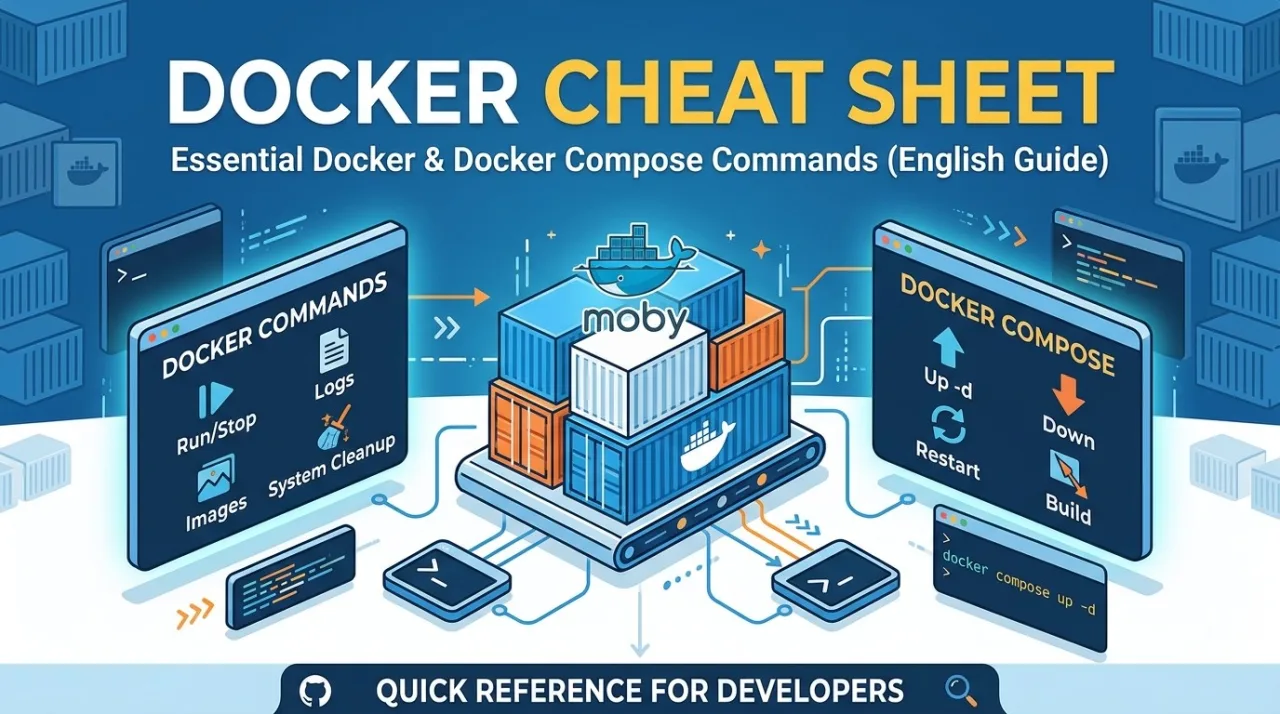
Working with Docker and Docker Compose involves managing various containers, images, volumes, and networks daily. Remembering every single syntax and flag can be challenging—especially when setting up quick development environments or troubleshooting server deployments.
This reference guide provides a concise Docker Cheat Sheet covering the most essential CLI commands and their practical descriptions. Keep this page bookmarked for a quick reference whenever you need to spin up containers, check service logs, or manage multi-container applications.
1. Docker Lifecycle & Management Commands
Command | Description |
| Download and start a container in the background ( |
| List all currently running containers. |
| List all containers (both running and stopped). |
| Gracefully stop a running container. |
| Start a stopped container. |
| Restart a running or stopped container. |
| Remove a stopped container (add |
2. Docker Logs & Debugging
Command | Description |
| View the standard output logs of a container. |
| Stream container logs in real-time (like |
| Open an interactive bash terminal inside a running container (use |
3. Docker Image Commands
Command | Description |
| List all locally stored Docker images. |
| Download a Docker image from Docker Hub without running it. |
| Build a Docker image from a |
| Delete a local Docker image. |
4. Docker Compose Commands
Command | Description |
| Build, (re)create, and start containers in the background using the |
| Stop and remove all containers, networks, and default volumes defined in the compose file. |
| List containers managed by the current |
| Follow log output from all services defined in the compose file. |
| Restart all services defined in the compose file. |
| Rebuild service images from scratch without starting them. |
5. System Cleanup Commands
Command | Description |
| Remove all stopped containers, unused networks, and dangling images to free up disk space. |
| Remove all unused containers, networks, images (not just dangling ones), and volumes. (Gunakan dengan cermat) |
Did this tutorial help?
1 reader found this helpful

Comments
No comments yet. Questions about this tutorial are welcome here: the answer helps the next reader too.